
How this tool works
Fill PDF Forms: a practical guide
Inspect fields first to list the names stored in the PDF. Supply a JSON object that maps each name to a value. Unsupported or misspelled fields produce an error.
Steps to use this tool
- Select a fillable PDF and inspect field names.
- Enter a JSON object matching those names and value types.
- Fill the form and reopen it to check field values.
Tested example — 19 October 2026
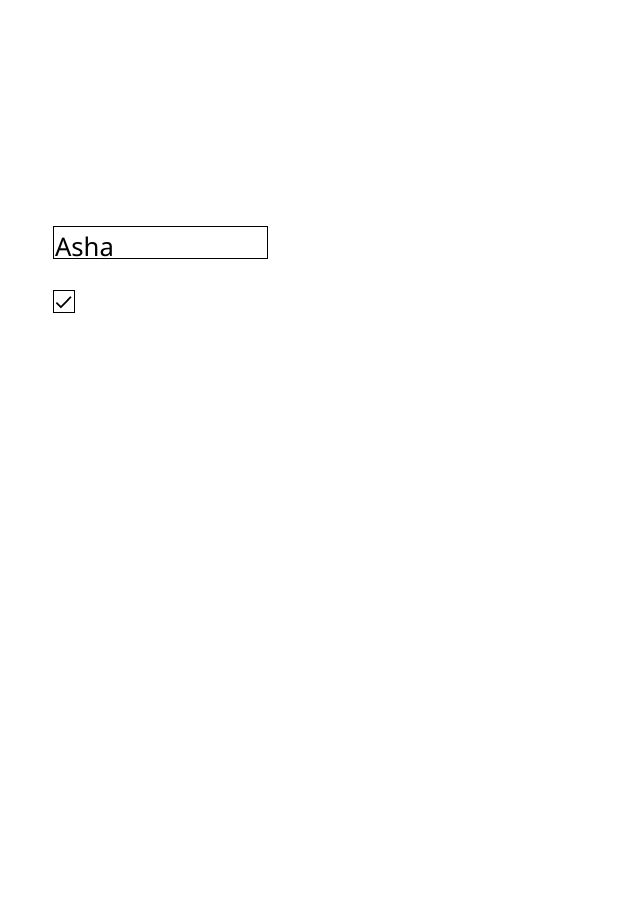
The sample sets fullName to Asha and the agree checkbox to true.
Selected sample: form.pdf (2493 bytes, 1 pages).
Measured output: form-filled.pdf — 6551 bytes; 1 PDF pages.
Sample settings:
{
  "fill": {
    "fullName": "Asha",
    "agree": true
  }
}
Test environment: Node + native canvas + actual site-ui.js form integration in LinkeDOM Representative sample; inspect your own output.
Check the result
Reopen the PDF and check both typed text and checkbox states. Test the fields in a viewer to confirm they remain interactive when that is what you need.
Files and privacy
The public tool processes selected documents in your browser. It does not send document bytes to a conversion server. The page and its bundled libraries still download from this website. Keep the original, use an up-to-date browser and inspect your output before sharing it. See the privacy policy for hosting and support information.
If processing fails
An unknown field name or malformed JSON is refused. XFA and scanned blank forms need a different workflow rather than guessed AcroForm keys.
Implementation notes and sample evidence updated 2026-10-19. These notes describe the supported operation and its limits.
Check the local-processing claim in your browser’s Network panel.