
How this tool works
Split PDF: a practical guide
With no ranges, each page becomes a separate file in a ZIP. To make groups, separate them with semicolons; commas combine pages inside a group. A single group downloads directly as a PDF.
Steps to use this tool
- Select a PDF.
- Enter page groups, or leave the field blank for one file per page.
- Choose Split PDF and inspect the downloaded PDF or ZIP.
Tested example — 19 October 2026
The test split two pages with 1;2 and independently opened both one-page PDFs in the downloaded ZIP.
Selected sample: sample-a.pdf (5028 bytes, 2 pages).
Measured output: sample-split.zip — 5630 bytes.
The downloaded ZIP contains 2 files; their page counts are 1, 1.
Sample settings:
{
  "ranges": "1;2"
}
Reproduce this example with sample A (two pages). These files contain synthetic test text.
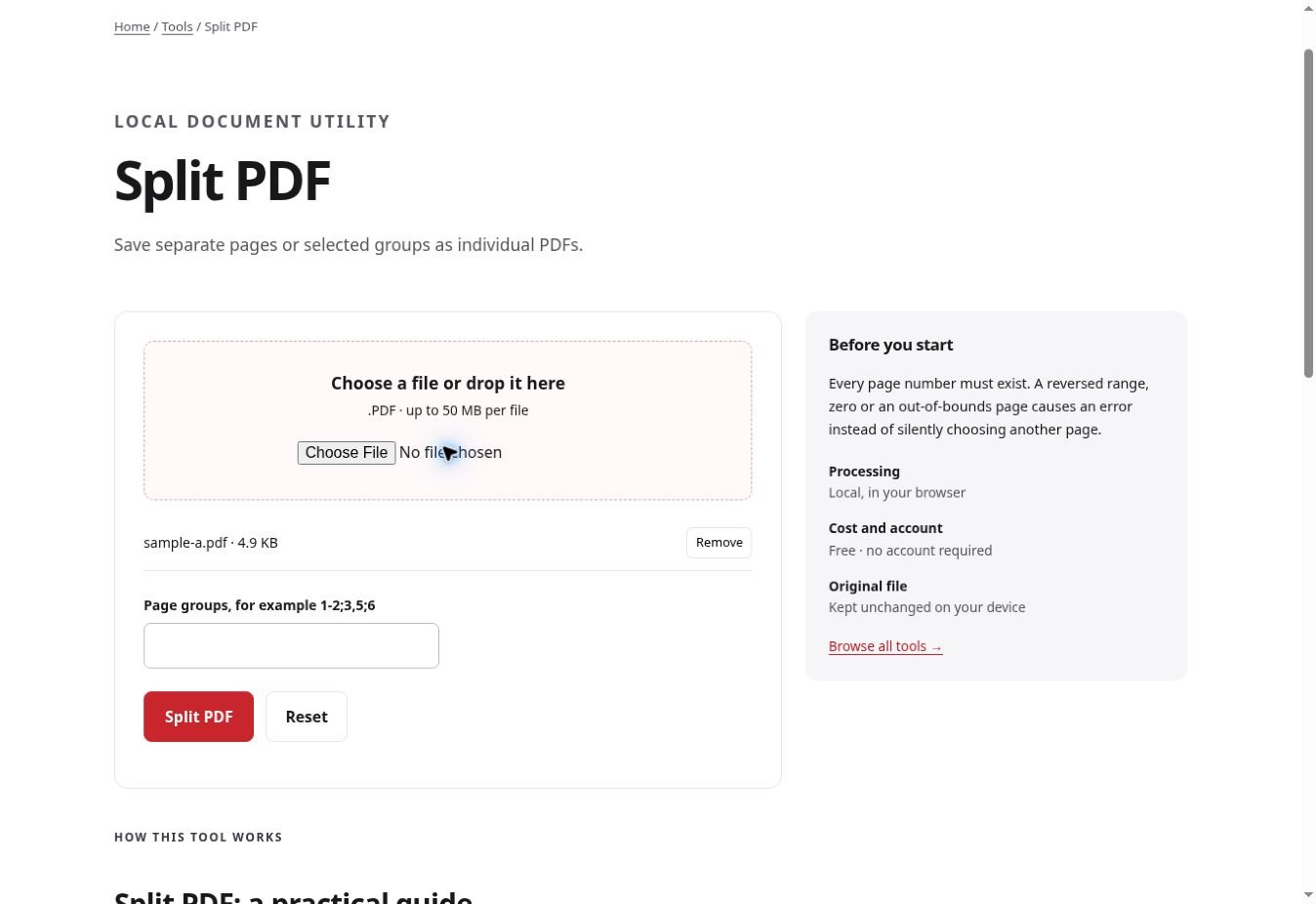
Test environment: Real Chrome on https://ilovepdf.store; native file chooser and downloaded output verified with an independent PDF parser. Representative sample; inspect your own output.
Check the result
Open the ZIP and confirm the number of parts matches the groups you entered. Check the first page in each part against the original page number rather than trusting only the filename.
Files and privacy
The public tool processes selected documents in your browser. It does not send document bytes to a conversion server. The page and its bundled libraries still download from this website. Keep the original, use an up-to-date browser and inspect your output before sharing it. See the privacy policy for hosting and support information.
If processing fails
A range ending beyond the source page count is rejected. Replace reversed ranges such as 4-2 with a valid ascending range, or use the page extractor when you need a different sequence.
Implementation notes and sample evidence updated 2026-10-19. These notes describe the supported operation and its limits.
Check the local-processing claim in your browser’s Network panel.