
How this tool works
Search PDF Text: a practical guide
Runs a case-insensitive literal search on extracted text. The report lists page numbers and the text of each matching page so you can verify the context.
Steps to use this tool
- Select a PDF and enter a word or phrase.
- Run the literal text search.
- Open the report and check each excerpt against its page.
Tested example — 19 October 2026
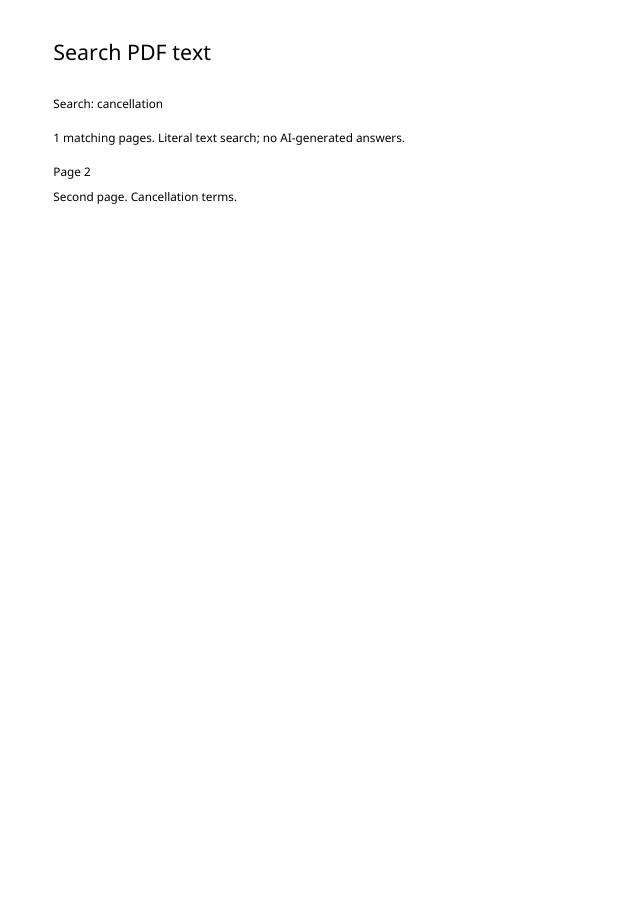
Searching cancellation finds one matching page and identifies page 2 in the fixture.
Selected sample: sample.pdf (2421 bytes, 2 pages).
Measured output: search-results.pdf — 7665 bytes; 1 PDF pages.
Sample settings:
{
  "query": "cancellation"
}
Test environment: Node + native canvas + actual site-ui.js form integration in LinkeDOM Representative sample; inspect your own output.
Check the result
Check a returned excerpt on its reported page. A term that appears inside an image will not match until that image has been recognized as text.
Files and privacy
The public tool processes selected documents in your browser. It does not send document bytes to a conversion server. The page and its bundled libraries still download from this website. Keep the original, use an up-to-date browser and inspect your output before sharing it. See the privacy policy for hosting and support information.
If processing fails
An empty query is not a meaningful search. If a phrase fails, try a distinctive word and inspect the PDF's extraction order, especially around line breaks.
Implementation notes and sample evidence updated 2026-10-19. These notes describe the supported operation and its limits.
Check the local-processing claim in your browser’s Network panel.